



The Clone Stamp Tool is one of the most versatile and powerful tools available in Adobe Photoshop. It allows users to copy the exact same pixels from one part of an image to another. This makes it ideal for removing unwanted elements, adding texture, or replacing a section of an image.
How to Use the Clone Stamp Tool
Using the Clone-Stamp Tool is relatively straightforward. Here’s a step-by-step guide:
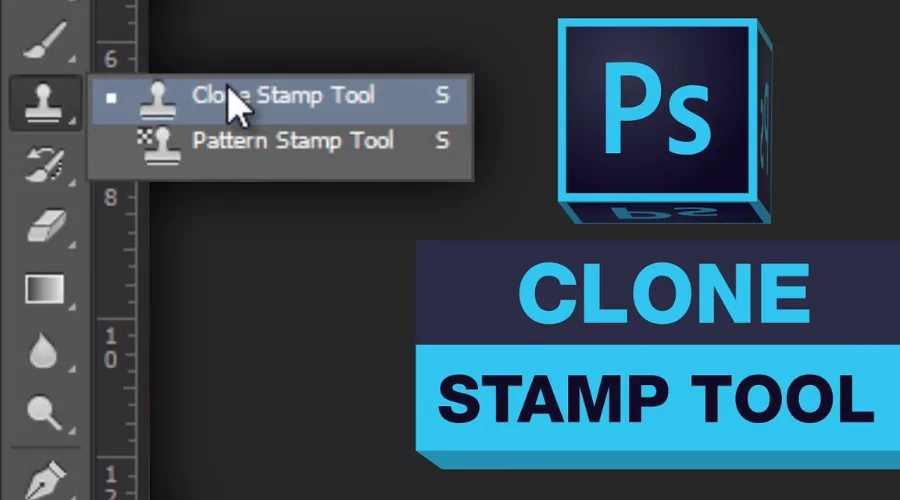
Step 1: Select the Clone Stamp Tool
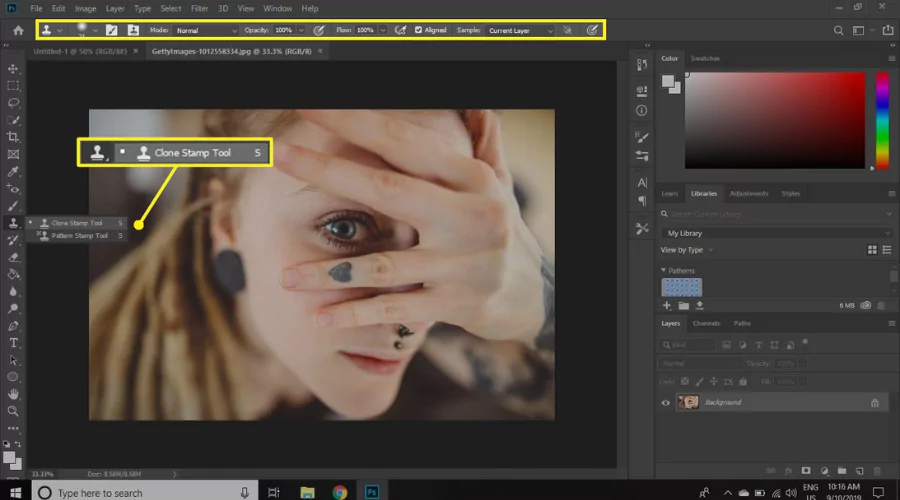
The Clone Stamp Tool can be found in the Tools panel in the upper left corner of the Photoshop window. It looks like a stamp with a dotted circle around it.
Step 2: Set the Sample Source
Once the Clone Stamp Tool is selected, set the sample source by selecting the area of the image that you want to clone. This can be done by clicking on the area with the Clone-Stamp Tool and dragging it to the desired area.
Step 3: Set the Target Area
The target area is where the cloned pixels will be pasted. Set the target area by clicking and dragging the Clone-Stamp Tool to the desired area.
Step 4: Adjust the Clone Stamp Settings
The Clone-Stamp Tool has a number of settings that can be adjusted to control the size of the cloned area, the opacity of the cloned pixels, and the blending mode. These settings can be adjusted to get the desired effect.
Step 5: Start Cloning
Once the settings are adjusted, start cloning by clicking and dragging the Clone-Stamp Tool over the target area. The cloned pixels will be copied to the desired area.
Benefits of using the Clone Stamp Tool

The Clone Stamp Tool is a popular tool used in Adobe Photoshop that is meant to help photographers and graphic designers retouch and remove objects from images. It is used to copy and paste a part of an image to another area of the same image. It is one of the most important and useful tools in Adobe Photoshop, and it can help you to remove unwanted objects, duplicate objects, and even repair damaged images.
1. Quick and Easy Editing:
The Clone Stamp Tool is a great tool for editing images quickly and easily. It is easy to use and offers a great way to make quick edits to your photos. You can quickly select the area you want to copy, and then paste it into another area of the image. This speeds up and simplifies the process of editing photographs.
2. Professional Quality Results:
Using the Clone-Stamp Tool can help you achieve professional quality results. The tool allows you to select the exact area you want to copy, and then paste it into another area of the image. This ensures that the results you get are of high quality and look professional.
3. Flexibility and Control:
The Clone Stamp Tool gives you complete control over the editing process. It allows you to select the exact area you want to copy and paste, and you can adjust the size, shape, and opacity of the area you are copying and pasting. This gives you the flexibility to make precise edits and get the results you want.
4. Repair Damaged Images:
The Clone Stamp Tool is also a great tool for repairing damaged images. If you have an image that has been damaged or has some parts missing, you can use the Clone-Stamp Tool to copy and paste sections of the image to repair it. This can be very helpful in restoring damaged photos.
Conclusion
The Clone Stamp Tool is an incredibly powerful and versatile tool that can be used to make quick and easy edits to an image. With a few simple steps, anyone can learn to use the Clone- Stamp Tool in Adobe Photoshop.
The Clone-Stamp Tool is an essential tool for anyone who works with images in Adobe Photoshop. It is a quick and easy way to make quick edits, achieve professional quality results, and repair damaged images. It is a great tool for photographers and graphic designers, and it can help you to create beautiful images. For more information, visit Feedhour.