




Adobe Photoshop is undoubtedly the best and most efficient photoshop app to use on any of your devices. Characterised by quality, numerous features, an easy-to-use interface, quick results and more, nothing stops you from getting the best photoshop documents via Adobe photoshop. Adobe Photoshop tools are many and are used for various purposes right, from simple selection and cropping to even advanced editing like blurring, drawing, transparency and so on. Photoshop all tools are designed to enhance your editing process so you can quickly and effortlessly get the desired result creatively and smartly.
All About Photoshop Tools
Tools In The Quick Mode Of Adobe Photoshop
As the name suggests, the Quick mode in Adobe Photoshop is designed to give quick and instant access to the regular photoshop tools used regularly for even small and basic editing. These photoshop tools are used at almost every step of editing and are required more frequently than other tools. A few common tools found in the Quick mode are:
- Zoom- This photoshop tool is used to zoom in or zoom out to get a clearer view of the image and edit greater details.
- Crop- This is one of the most widely known and used photoshop tools that allows you to cut or crop a portion of the image or document per your preference.
- Move- The move tool is another of the basic yet important photoshop tools used when the image or document has to be moved while performing detailed editing.
- Spot healing brush- This tool helps to remove or clear any distractions in your image.
The Expert Mode
This mode has all the tools laid out in different sections for ease of use and detailed editing. There are 4 categories under which specific photoshop tools are found, which are elaborated below:
Tools In The Select Group Of Adobe Photoshop
The select group includes all the tools used for selecting a space, shape, image, element, etc. Some of the tools in the Select group are:
- Rectangular Marquee Tool- This tool selects a portion of the image in a rectangular form. Other photoshop tools allow you to select a polygon, elliptical and so on.
- Selection Brush Tool- This tool is used for painting, as the name suggests. The Selection Brush tool selects an area that you wish to paint.
- Quick Selection Tool- This is one of the most efficient photoshop tools for quicker editing. It makes a selection based on the colour or texture, similar to when you click.
- Magic Wand Tool- The magic wand tool photoshop selects pixels with similar colours for easy and quick editing. All you have to do is click on one part having a similar colour.
Tools In The Enhance Group Of Adobe Photoshop
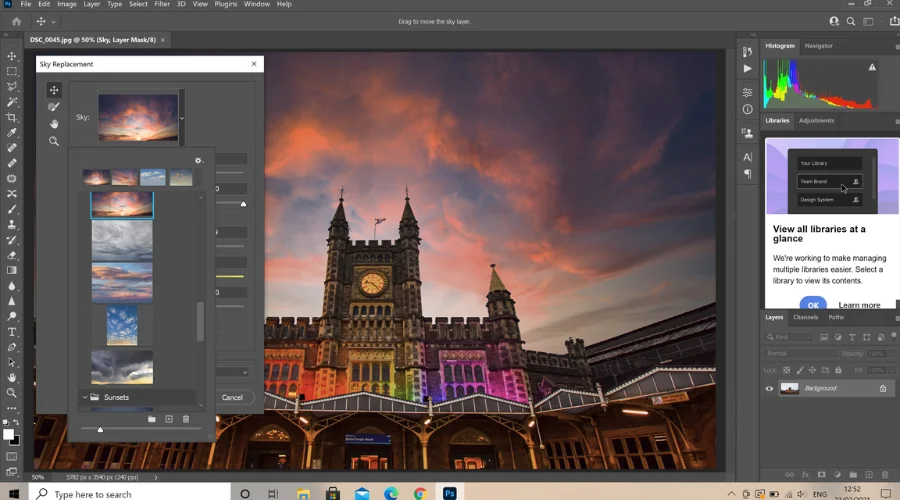
As the name suggests, this group holds all the photoshop tools created for adding all the details and fixing minute parts of your image. Some of the tools in the Enhance group are:
- Blur Tool- The blur tool photoshop allows you to blur or soften certain parts of an image, thereby reducing the detail and clarity of the same.
- Sharpen Tool- The sharpen tool is the opposite of the blur tool. This tool allows you to define and outline an image’s parts to make it clearer and sharper.
- Doge Tool- This is a great Photoshop tool to use if you’re working with light or shadows in your image. It lightens the areas you select to bring clarity to shadows.
- Smudge- This is the blend tool photoshop has created so you can add more clean and creative edits to your image. It blends the colours for a vibrant and well-mixed finish.
Tools In The Draw Group Of Adobe Photoshop
If you want to get extra creative and go all out by drawing objects and elements, the draw group is your go-to group. This group has all the tools for creating shapes and elements as you desire. Some of the photoshop tools are:
- Brush Tool- The brush tool gives you the brush strokes like in MS Paint. You can choose from different types and textures of brush strokes.
- Eraser Tool: The eraser eliminates all your minutes and great mistakes.
- Color Picker Tool- This is one of the photoshop tools that copies the colour samples you wish to apply in a different section or image altogether.
- Type Tool- This tool allows you to create text boxes to add text anywhere you like in your image.
Tools In The Modify Group Of Adobe Photoshop
Lastly, the modify group has photoshop tools that give your image the basic or final touches. This group of tools may also be used if you are doing basic cutting or editing. Some of the tools in the Modify group are:
- Cookie-cutter Tool- This tool allows you to crop or cut your image into any shape you desire.
- Perspective-crop Tool- This tool allows you to crop per your preference to keep all the elements proportionate. Say goodbye to distorted photos!
- Recompose Tool- This tool allows you to reshape or resize your image while keeping all the central and important elements intact.
- Straighten Tool – This is one of the photoshop tools designed to straighten and align your image as per your preference.
Conclusion
There are varied photoshop tools that you can use for minimalist to advanced editing on Adobe Photoshop. Use these and get the best results quickly and easily. Follow Feedhour for more content on recommendations, suggestions, and various topics.