


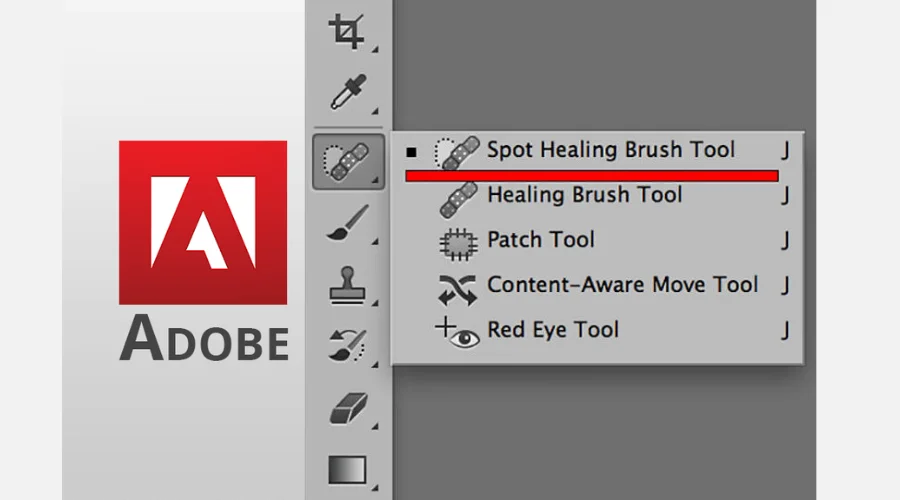

The Healing Brush Tool is an incredibly powerful tool from Adobe that can be used to restore and fix images. This tool is used to retouch and repair photos and other digital images. It can be used to correct flaws, erase spots, remove blemishes, and even restore missing parts of an image. In this article, we will discuss how to use the Healing-Brush Tool from Adobe.








1. Setting up the Healing Brush Tool
The first step in using the Healing-Brush Tool is to set it up. To do this, open up the image you want to edit in Adobe Photoshop. In the toolbar at the top of the window, select the Healing Brush Tool. Once you have selected the tool, a set of options will appear on the right-hand side of the window.
2. Using the Healing Brush Tool
Once you have set up the Healing Brush Tool, you are ready to begin using it. To use the tool, select the area of the image you want to repair or retouch. Then, select the brush size and feathering settings. The brush size determines the size of the area that will be affected, while the feathering setting determines how much of a blur effect is applied to the edges of the area.
Next, select the source of the area you want to repair. This can be a different part of the same image or a different image entirely. Once you have selected the source, click and drag the Healing Brush Tool over the area you want to repair. The Healing-Brush Tool will then replace the area with the source image.
3. Using the Clone Stamp Tool
The Healing Brush Tool is a powerful tool, but it is not always the best tool for the job. In some cases, such as when you want to copy and paste an exact copy of an area, the Clone Stamp Tool is a better choice. To use the Clone Stamp Tool, select the area you want to copy and then select the Clone Stamp Tool. Once you have selected the tool, click and drag the tool over the area you want to copy. The Clone Stamp Tool will then copy the area and paste it into the new location.
Benefits of using the Healing Brush Tool
The Healing Brush Tool is one of the most powerful and useful tools in Adobe Creative Suite. It is used to remove unwanted elements from an image and replace them with a more visually appealing element. This tool is ideal for retouching photographs, and removing spots, blemishes, and other imperfections from an image. It is a great way to bring an image to life and make it look perfect.
1. Easy to Use:
The Healing-Brush Tool has excellent usability and simplicity. Get the intended results with just a few clicks. It is also very intuitive and allows users to quickly and easily make adjustments to an image.
2. High-Quality Results:
The Healin-Brush Tool produces high-quality results. It can be used to remove blemishes, spots, and other imperfections from an image with ease. The results are often indistinguishable from the original image.
3. Versatile:
The Healing-Brush Tool is a very versatile tool. It can be used to remove various elements from an image and replace them with a more visually appealing element. Users can alter their pictures in this way to suit their preferences.
4. Time-Saving:
The Healing-Brush Tool is a great time-saver. It can be used to quickly remove unwanted elements from an image without having to spend hours manually retouching the image. This makes it a great tool for photographers who need to quickly edit images for clients.
Conclusion
The Healing Brush Tool is an incredibly useful tool for retouching photographs. Its ease of use, high-quality results, versatility, and time-saving abilities make it a valuable asset for photographers. Whether you are a professional or a hobbyist, the Healing-Brush Tool can help you quickly and easily edit your images to perfection.
Using the Healing-Brush Tool and the Clone Stamp Tool from Adobe can be a great way to repair and retouch images. With a little practice, you can quickly learn how to use these tools to enhance the quality of your images. For more information, visit Feedhour.